Lesson · 4 chapters
Set up your build environment
Get comfortable in Terminal, save your work on GitHub, put something live with AI help, then make it yours by hand. Four chapters, in order. No coding background needed.
- Chapters
- 4
- Total time
- About 45 min
- You need
- A Mac or Windows laptop
Why this lesson exists: environment setup is where most designers on my teams got stuck before they ever wrote a prompt. I wrote about that in Designers are anxious. Leaders can fix that. and in Confidence is built, not mandated.
Chapter 01 · About 10 min#terminal
Terminal basics
The terminal is a text window into your computer. It looks scary. It isn’t. You need about eight commands, and you only learn them once.
Part 1
Find your way around
Where I see designers get stuck
This is the chapter where I see most non-technical designers freeze. Not because it’s hard, but because there’s no UI.
No buttons, no layers panel, no undo. Just a blinking cursor waiting for you to type, and the feeling that one wrong word will break your laptop.
It won’t. Almost everything you type here reads or moves. It doesn’t delete.
And when something goes wrong, the terminal tells you in plain text. A typo looks like this:
cd: no such file or directory: my-frist-projectThat’s a typo, not a broken computer. Press ↑ to bring the line back, fix the spelling, press Enter.
So treat it like any new tool. The terminal is nothing to be scared of.
It’s a means to an end: it’s how you install your AI tools, start a preview, and put your work online.
Learn the eight commands below and you can do everything in this lesson.
The 8 commands you need
- pwd
- Show where you are right now.
- ls
- List what’s inside this folder.
- cd folder
- Move into a folder.
- cd ..
- Go back up one folder.
- mkdir name
- Make a new folder.
- npm install
- Download everything a project needs to run.
- npm run dev
- Start a private preview of the project on your laptop.
- ctrl + C
- Stop whatever is running. The escape key of the terminal.
You won’t type the two npm commands in this lesson. Your preview here uses python3 -m http.server 8000 (Part 2). They’re on the list because Claude Code may ask to run them, and you should know what you’re saying yes to.
Shortcuts
- Enter
- Runs what you typed. Nothing happens until you press it. Same on Windows.
- ↑ and ↓
- Bring back commands you already typed. Fix the line, press Enter. No retyping. Same on Windows.
- Tab
- Finishes a file or folder name for you. Type cd my- and press Tab. It also stops typos. Same on Windows.
- ctrl + C
- Stops whatever is running, like a local site. Same on Windows.
- ctrl + A / ctrl + E
- Jump to the start or end of the line. Windows: Home and End.
- ctrl + R
- Searches everything you’ve typed before. Type a few letters of an old command. Same on Windows.
- cmd + K
- Clears the screen. Your files don’t change. Windows: cls or clear.
- cmd + T
- Opens a new tab, so one tab can run something while you type in the other. Windows Terminal: ctrl + shift + T.
- Drag a folder in
- Drag any folder into the window and its path types itself. Type cd and a space first. Same on Windows.
- open .
- Opens the folder you’re in. Mac: Finder. Windows PowerShell: type explorer . instead.
Steps
- 1
Open Terminal
On a Mac, press Cmd + Space, type Terminal, and press Enter. On Windows, open Start and type PowerShell. You’ll see a blinking cursor. That’s the terminal waiting for you.
- 2
Find where you are
Type these one at a time and press Enter after each. Do this any time you feel lost.
pwdls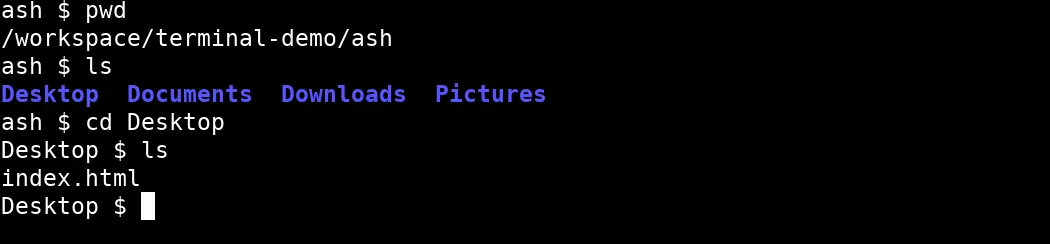
A real terminal. Yours will look a little different on a Mac. - 3
Make your project folder
This makes a folder on your Desktop and moves you into it. You’ll use it for the rest of this lesson.
cd ~/Desktop && mkdir my-first-project && cd my-first-project - 4
Install your AI coding tool
Pick one. Claude Code lives in the terminal and is best for learning it, and it needs a paid Claude plan. Cursor is an app that feels closer to a design tool: download it from cursor.com, choose File, then Open Folder, and pick my-first-project. For Claude Code on a Mac, run this, then type claude. On Windows, use the PowerShell command on Anthropic’s setup page.
curl -fsSL https://claude.ai/install.sh | bashclaude - 5
Ask it to make something
Type a request in plain words, like a brief. When it’s done, type /exit, then run ls. Your new file is there.
Make an index.html with my name in big type and one line about me.
Claude Code helps, but learn this first
Once Claude Code is set up in step 4, it runs inside this same window. You can ask it in plain words to make a folder, install something, or start a preview, and it runs the commands for you. It shows you each command and asks before it runs it.
You can also run a command yourself without leaving it. Start the line with !, like !ls. Press Esc to stop Claude mid-answer, and ↑ to bring back an earlier request.
That’s why the basics still matter. When it asks “Can I run npm install?”, you need to know what that means before you say yes. Knowing the terminal lets you check its work, fix small things yourself, and use the many tools that have no app at all. It unlocks so much.
Part 2
Open your folder as a local site
Double-clicking index.html opens it, but the address bar starts with file://. That’s fine for plain HTML. Some things only work when the page comes from a server, the way a real site does. A local server is a tiny program on your laptop that hands your folder’s files to the browser.
- localhost
- A preview link only your computer can open. Like a Figma prototype shared with nobody but you.
- :8000
- The port. Think of it as which door the preview uses. If one door is taken, use another, like 8001.
- the server
- Only runs while that terminal tab stays open. Close the tab and it stops. The page stays on screen until you refresh, then it’s gone.
Open Terminal and do these three things first. That way this part works on its own, even if you’re coming back after a break.
1. On a Mac, install Apple’s Command Line Tools. It’s free, Install is safe to click, and it takes a few minutes. It’s the same install that gives you git, so Set up GitHub (02) is already covered. If it says they’re already installed, you’re set. On Windows, skip this.
xcode-select --install2. Go to your project folder. This line makes it first if it isn’t there yet. On Windows, if Part 1 already made it, just type cd ~/Desktop/my-first-project.
mkdir -p ~/Desktop/my-first-project && cd ~/Desktop/my-first-project3. If there’s no index.html in the folder yet, paste this to make one. Skip it if Claude Code already made one in Part 1, because this would replace it.
echo 'Hello, world.' > index.htmlNow start the local site. On Windows, type python -m http.server 8000 instead.
python3 -m http.server 8000Now open http://localhost:8000 in your browser. Your index.html shows up, and the terminal adds a line every time the page loads. When you’re done, press ctrl + C in that tab.
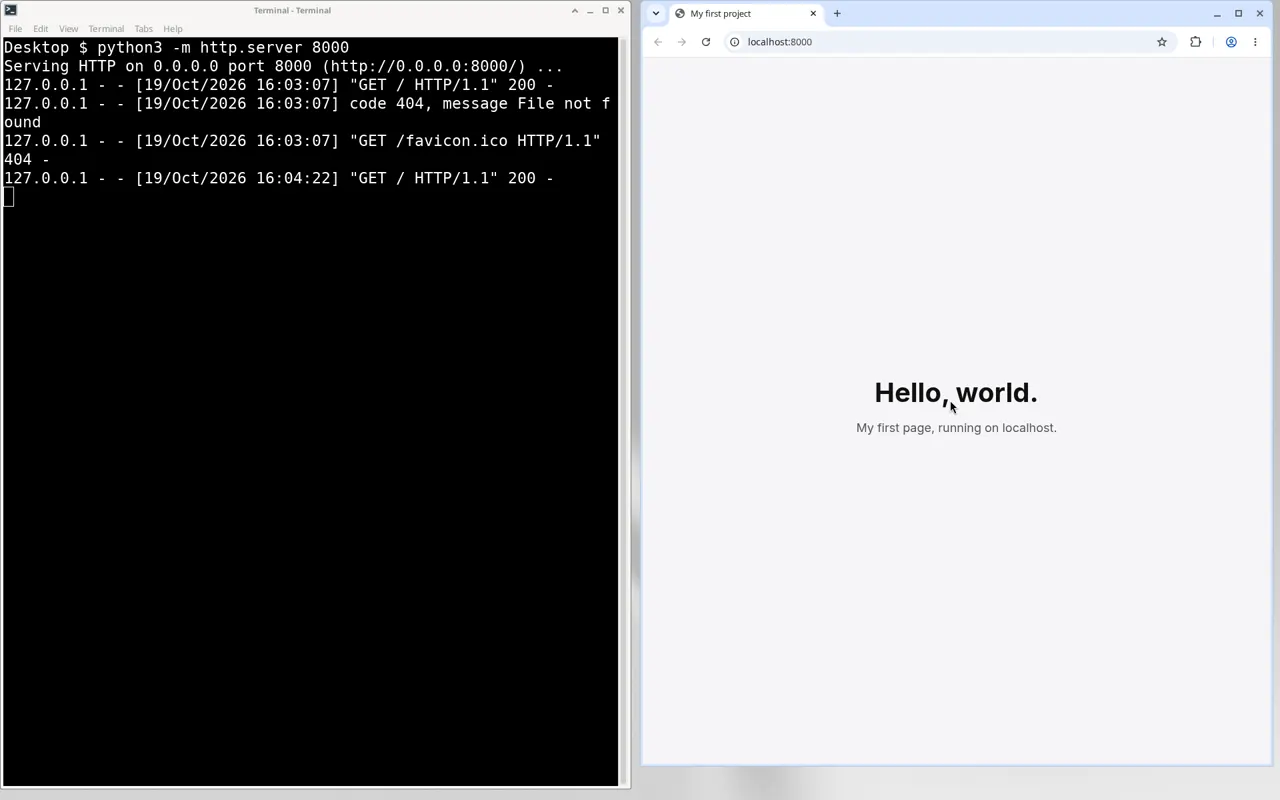
Prefer a button? The Live Server extension in VS Code does the same thing with one click. It’s optional. Learning the command first means you’re never stuck when a tool changes.
Where it trips people up: if you see a list of files or a 404, you started it in the wrong folder. Stop it, cd into the right one, and start again. If you see “Address already in use,” another preview already has that door. Stop the old one or use 8001. If you closed the terminal, the page stays until you refresh, then it’s gone. Start the server again.
Set up a local testing server, MDN Read. Mozilla’s guide to exactly this.
python -m http.server Python Morsels. 2 min, shows this exact command.
What is localhost? Hostinger. 3.5 min, the idea in plain words.
You’re done with Part 1 when there’s a my-first-project folder on your Desktop with an index.html in it. You’re done with Part 2 when that page opens at localhost:8000.
Watch and read
Chapter 02 · About 10 min#github
Set up GitHub
Git is version control: the system engineers use to save, track, and share code changes. Think of it as a more powerful version history that lives alongside your project.
Do this first: Terminal basics (01)Open Terminal basics →
Where I see designers get stuck
On the words, not the steps. Push, pull, commit, origin, main. It sounds like engineering.
It’s version history with a few extra steps, and the design terms above cover most of it.
The other place is the SSH key. If you see Permission denied (publickey), GitHub just doesn’t recognize your laptop yet.
Go back to the SSH key step and add the key again. Nothing is broken.
Words you’ll hear
- repository (repo)
- The entire project folder tracked by Git. Like a Figma file, but for code: it holds the full history of every change ever made.
- commit
- A saved snapshot of your changes: like a version in Figma history, with a message describing what changed and why.
- branch
- A separate copy of the codebase where you can make changes safely. Like duplicating a Figma page to try a new direction without affecting the main design.
- main
- The primary, production-ready branch. This is what users see. You never edit main directly: you always work on a branch and merge in.
- merge / PR
- Combining your branch back into main. A pull request (PR) is the formal process for doing this: with review, comments, and approval before the merge happens.
- clone / pull
- Clone downloads a repo to your computer for the first time. Pull gets the latest changes from teammates.
mainbranchcommitsPRmerge to main
Shortcuts
- ↑
- Brings back your last git command. Handy when a push fails and you want to run it again. Same on Windows.
- cmd + V
- Pastes your SSH key or the repo address into Terminal. Windows Terminal: ctrl + V.
- q
- Gets you out of long screens like git log. Same on Windows.
Steps
- 1
Install Git
On a Mac, you already installed this in chapter 01, in Terminal basics Part 2. Run this to check. On Windows, download Git for Windows from git-scm.com and keep the default settings.
git --version - 2
Tell Git who you are
Use the same email as your GitHub account. This name shows up on every change you save.
git config --global user.name "Your Name"git config --global user.email "you@example.com" - 3
Set up an SSH key
This is a saved login for your laptop, so GitHub stops asking for a password. Press Enter for every question, then copy the key. On GitHub, open your photo, then Settings, then SSH and GPG keys. Click New SSH key, paste, and save.
ssh-keygen -t ed25519 -C "you@example.com"pbcopy < ~/.ssh/id_ed25519.pub - 4
Install VS Code
Download it from code.visualstudio.com. Open Extensions with Cmd + Shift + X, search for GitHub Pull Requests, and click Install. You’ll use it for reviews later.
- 5
Start Git in your project
Go to your project folder and turn Git on. Nothing visible happens, and that’s normal.
cd ~/Desktop/my-first-project && git init - 6
Make your first commit
This saves a snapshot of everything in the folder. You just used Git.
git add . && git commit -m "first commit" - 7
Push it to GitHub
Right now your work only lives on your laptop, like a Figma file you never shared. Pushing puts a copy on GitHub, so it’s backed up and anyone with the link can see it. On GitHub, click + at the top right, then New repository. Name it my-first-project, leave everything else empty, and click Create repository. In the Quick setup box, click SSH and copy the address. Then run these three lines with your own address. Refresh the repo page and your files are there. After this first time, git push on its own is enough.

Click SSH first, then copy. Screenshot: GitHub Docs, CC BY 4.0 git remote add origin git@github.com:your-username/my-first-project.gitgit branch -M maingit push -u origin main
Where Claude Code fits
Claude Code can do all of this for you. Ask it to “commit this with a clear message and push it,” and it will. Do your first commit by hand anyway. Then when it asks to run git push, you know exactly what you’re saying yes to.
You’re done when your repo page on GitHub shows index.html and your first commit message.
Watch and read
Chapter 03 · About 10 min#ship
Ship your first build
This is where it all comes together. Describe something, let AI build it, put it on a real link, and send it to one person. The quality doesn’t matter. The loop does.
Do this first: Set up GitHub (02)Open Set up GitHub →
Where I see designers get stuck
Waiting for it to be good enough to share. That’s the designer in us.
Ship the rough one. The point of this chapter is the loop, not the result.
The other trap is the blank prompt. Brief it like you’d brief a designer: who it’s for, what’s on the page, how it should feel.
Then give one note per round, like a crit.
Words you’ll hear
- deploy
- Move your code from your laptop to a link anyone can visit.
- localhost
- A preview that only runs on your laptop. Nobody else can see it.
- live URL
- The real link. Send it to anyone.
- GitHub Pages
- GitHub’s free hosting for simple sites. It turns your repo into a link.
- prompt
- What you type to tell the AI what you want.
Shortcuts
- cmd + shift + R
- Hard refresh in Chrome when your change won’t show up. Windows: ctrl + shift + R.
- Esc
- Stops Claude Code mid-answer so you can redirect it.
- shift + Enter
- Starts a new line in your Claude Code prompt without sending it.
- ctrl + C
- Stops a running local site. Same on Windows.
Steps
- 1
Pick something small
One page, one job. A link-in-bio page, a one-page portfolio, or a tip calculator. If you can describe it in one sentence, it’s the right size.
- 2
Write the brief
Open Claude Code or Cursor inside my-first-project and describe it like you’d brief a designer: who it’s for, what’s on the page, and the feel.
Build a one-page portfolio in index.html and style.css. My name in big type, three projects as cards, a contact link. Calm, lots of whitespace. - 3
Look, then give notes
Open localhost:8000 from Terminal basics, Part 2, and look. Give one note per round, like a design crit: more space between the cards, make the heading bigger. Refresh after each change.
- 4
Save and push
Check it on localhost first. When you like it, save a version and send it up to GitHub.
git add . && git commit -m "first build"git push - 5
Put it live
On your repo page, open Settings, then Pages. Under Build and deployment, choose Deploy from a branch, pick main and /(root), and click Save. Within about 10 minutes your link shows at the top: your-username.github.io/my-first-project.

Screenshot: GitHub Docs, CC BY 4.0 - 6
Send it to one person
Send the link to one friend and ask one question: what’s confusing? That’s your first round of user feedback.
Where Claude Code fits
This whole chapter runs through Claude Code or Cursor. When something breaks, paste the error in and ask what it means. Ask it to commit and push when you’re happy. That isn’t cheating. That’s the workflow.
You’re done when someone else has opened your live link.
Watch and read
Host a website using GitHub Pages
Chapter 04 · About 15 min#html-css
HTML and CSS
Every screen you’ve ever designed ends up as HTML and CSS. Your page is already live. Now you make it yours by hand, then make it work on a phone.
Where I see designers get stuck
Most designers I talk to try to memorize tags, like it’s a vocabulary test. Don’t.
You didn’t learn Figma by reading the manual. You poked at things until they made sense.
Do the same here: change one number, watch what happens, change it back.
The other trap is thinking code is the real design. It isn’t. HTML and CSS are the file format your design ships in. It’s a means to an end.
You already know every idea in this chapter. You’re just learning new names for them.
Your page already runs as a local site from Terminal basics, Part 2. Keep that terminal tab open while you work, and refresh after every save.
Words you’ll hear
- div
- A container. Like a frame in Figma.
- class
- A reusable style name. Like a text style or a color style.
- padding / margin
- Inner spacing and outer spacing. Padding is auto layout padding. Margin is the gap between frames.
- flexbox
- How most layouts get lined up. If you know auto layout, you already get it.
- px / rem / %
- Fixed and relative sizes. px never changes, rem scales with the text size, % is a share of the parent.
- box model
- Content, padding, border, margin. The four layers every element on a page has.
- media query
- A rule that only kicks in at certain screen widths. Your breakpoints.
Shortcuts
- cmd + S
- Save your file. Windows: ctrl + S.
- cmd + R
- Refresh the browser to see your change. Windows: ctrl + R or F5.
- cmd + option + I
- Opens DevTools in Chrome, so you can inspect anything. Windows: ctrl + shift + I or F12.
- cmd + Z
- Undo, same as Figma. Windows: ctrl + Z.
Steps
- 1
Open your page two ways
Start the local site from Terminal basics, Part 2, then open localhost:8000. Open the my-first-project folder in VS Code too. Code on one side, page on the other.
cd ~/Desktop/my-first-project && python3 -m http.server 8000 - 2
Change the words
In index.html, find the h1. Change the words between the tags, save with cmd + S, and refresh the browser. That’s HTML: what’s on the page, and in what order.
Your Name - 3
Style it
If your folder has no style.css yet, make one next to index.html and paste this link inside the <head> of index.html. Then add these lines to style.css. Change one number at a time, save, and refresh. That’s when it clicks.
<link rel="stylesheet" href="style.css">body { font-family: Georgia, serif; color: #1a1a1a; padding: 48px; }h1 { font-size: 56px; color: #5b2a86; margin: 0 0 8px; } - 4
Look under the hood
Open any website, right-click a button, and choose Inspect. That panel is Browser DevTools. It’s Dev Mode for the whole web, and you can change things live to see what happens.
- 5
Make it work on phones
Add this at the bottom of style.css. Then drag your browser window narrower and watch the page switch at 600px. That switch point is a breakpoint.
@media (max-width: 600px) { body { padding: 24px; } h1 { font-size: 36px; } } - 6
Put your changes live
Save a version and push, the same as in Ship your first build. Your live link updates within a few minutes.
git add . && git commit -m "made it mine" && git push
Where Claude Code fits
Claude Code or Cursor wrote most of this page for you in 03. Learning it by hand still matters. When you know what padding, flexbox, and a media query are, you can give the AI real design notes, like “add 24px of padding to the cards,” instead of “make it look nicer.”
You’re done when your name, your role, and one heading are styled with your own font and color, it still looks good at phone width, and the change is on your live link.