Set up GitHub
Git saves every version of your work, and GitHub is where that work lives so you can share it. About 30 to 60 minutes.
Do this first: Terminal basics (01)
In design terms
A saved version in Figma is version history. Duplicating a frame to try a new direction, without touching the main one, is a branch. A commit is a save with a sentence about what changed. GitHub is the shared file, the copy that isn't only on your computer.
Where I see designers get stuck
The words are the hard part. Commit means save a version. Push means send that save to GitHub. A typo in the remote name fails the first push. A typo like this is enough:
origin, spelled wrong
git push orgin mainWords you'll hear
- repository (repo)
- The project folder. On GitHub it has an address.
- commit
- A saved snapshot, plus a sentence about what changed.
- branch
- A copy of the project where you can try something. main is the copy you ship.
- remote
- The GitHub copy. origin is the usual name for it.
- push
- Send your commits to GitHub.
- pull
- Bring GitHub's commits down to your computer.
- clone
- Download a repo for the first time.
Shortcuts
git status | Shows what changed and what is not saved yet. |
|---|---|
git add . | Stages everything in this folder for the next commit. |
git commit -m "what changed" | Saves a snapshot with that sentence. |
git push | Sends the commits to GitHub. After the first push, this is the short form. |
Steps
Make a GitHub account
Free. Use an email you can open. Sign up on GitHub.
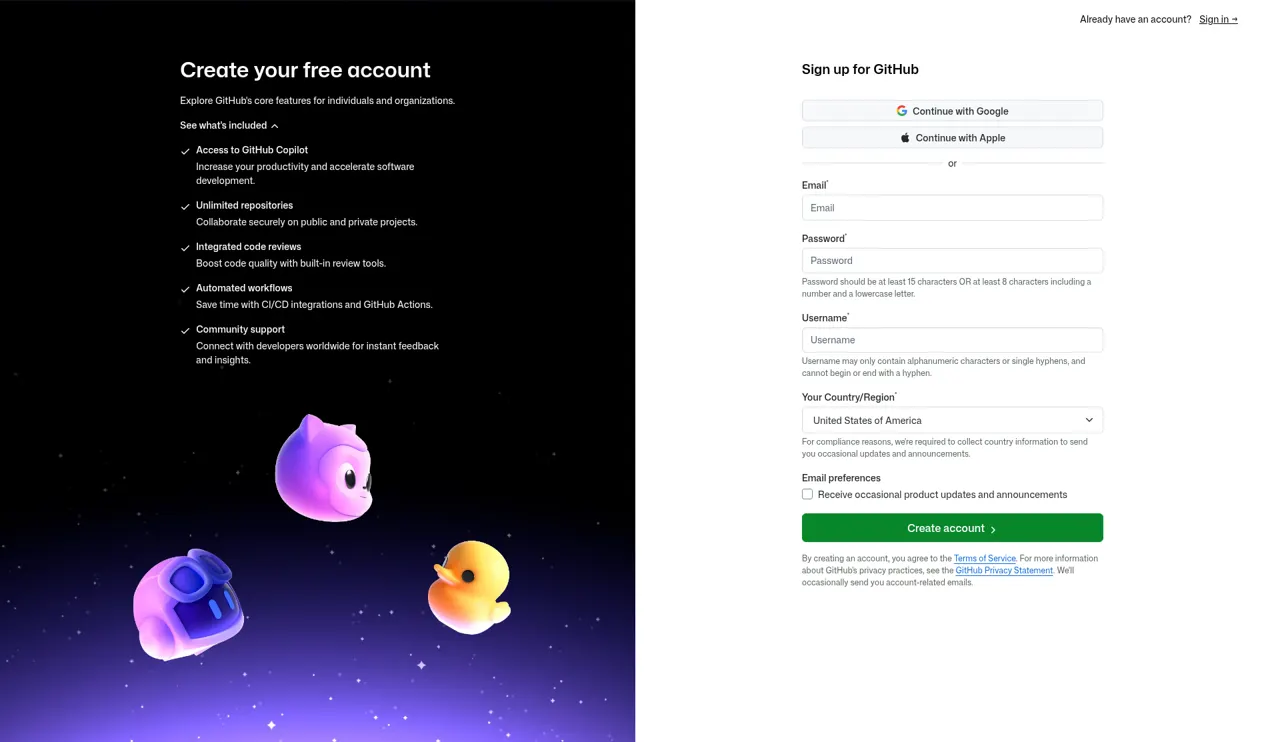
GitHub's sign-up page. The account is free. Install Git
On a Mac, ask for the version. If Git isn't there, macOS offers the command line tools, which include it. Homebrew also works: brew install git. On Windows, download Git from git-scm.com and use Git Bash after that.
git --versionMac, if Git isn't installed yet
xcode-select --install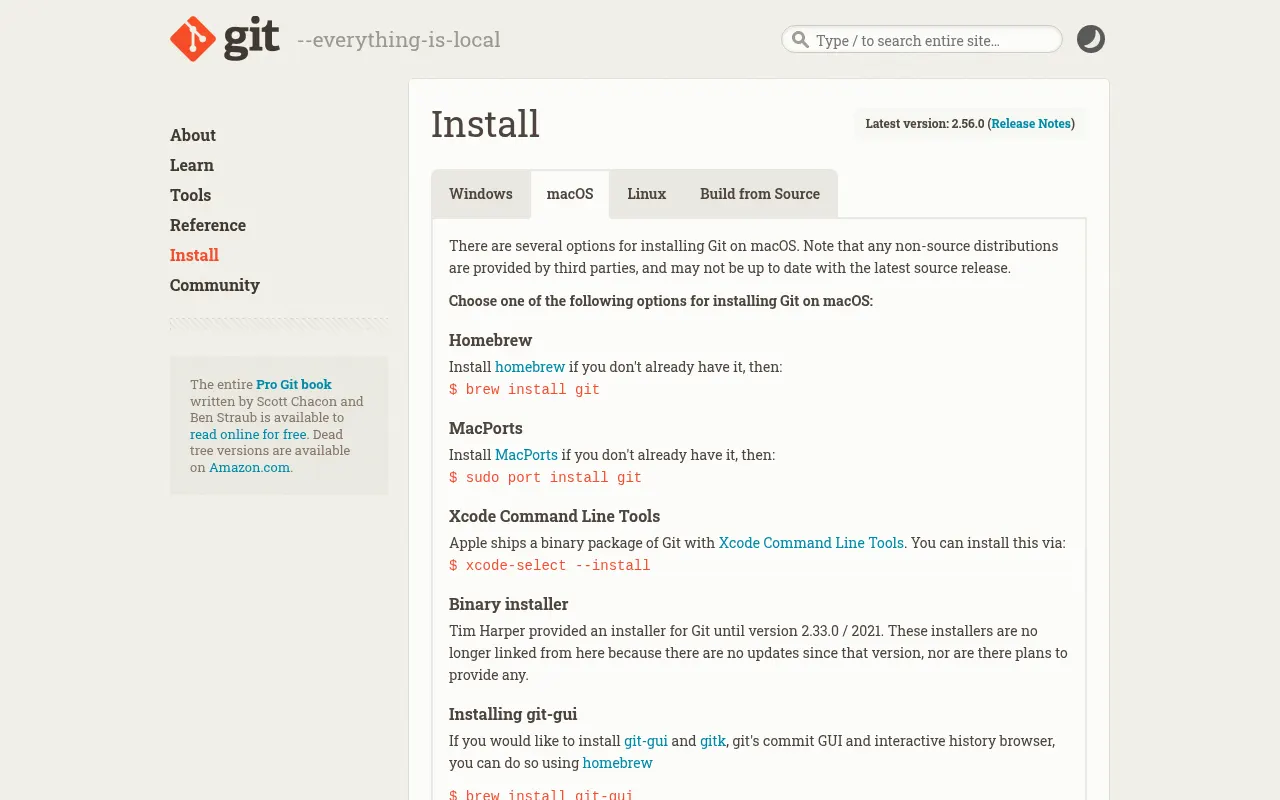
On a Mac, git --version either prints a version or offers to install the tools that include Git. Tell Git who you are
Once per computer. Use the same email as the GitHub account.
git config --global user.name "Your Name" git config --global user.email "you@example.com"Set up an SSH key
Once per laptop. Press Return through the questions. The passphrase can be empty while you are learning.
ssh-keygen -t ed25519 -C "you@example.com"Copy the public key, then on GitHub open Settings, then SSH and GPG keys, then New SSH key, paste, and save.
Mac
pbcopy < ~/.ssh/id_ed25519.pubWindows, in Git Bash
clip < ~/.ssh/id_ed25519.pubTest it. Type yes when it asks about the fingerprint. Success says you've authenticated.
ssh -T git@github.comCreate an empty repository
On GitHub, New repository. Name it my-first-project. Leave it empty: no README, no .gitignore, so the first push doesn't collide with a file you don't have yet. Then copy the SSH address from Quick setup.
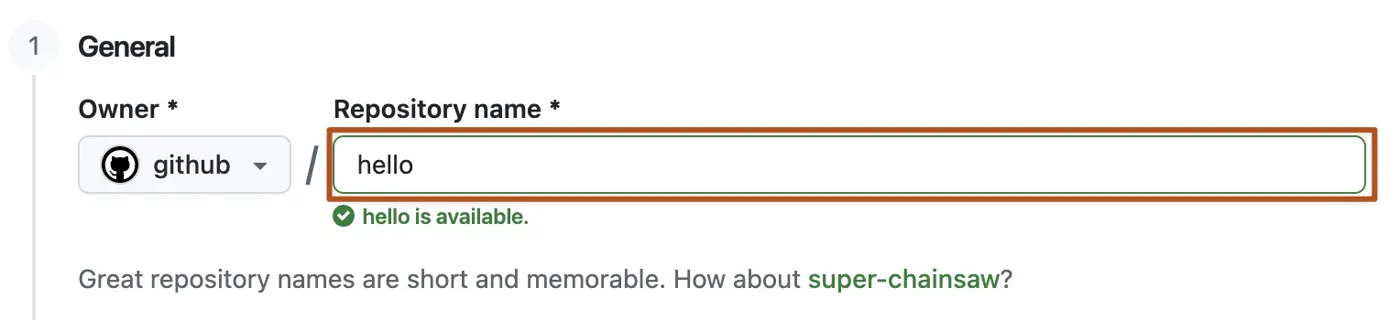
Name the repository. This example uses hello-world. Yours can be my-first-project. Screenshot: GitHub Docs, CC BY 4.0 
Copy the SSH address. It looks like git@github.com:your-name/my-first-project.git. Screenshot: GitHub Docs, CC BY 4.0 Start Git and make the first commit
In Terminal, from the project folder. These are typed, not pictures, so you can copy them.
cd ~/Desktop/my-first-projectgit init git add . git commit -m "first commit"Push it to GitHub
Swap your-name for your GitHub username. The first push sets the upstream, so later pushes are just git push.
git remote add origin git@github.com:your-name/my-first-project.git git branch -M main git push -u origin mainThe same commit, done on the website
If you did add a README while creating the repo, GitHub saves it with a commit message on the site. That is the same idea as git commit. Prefer the empty repo above for a first push from your computer.
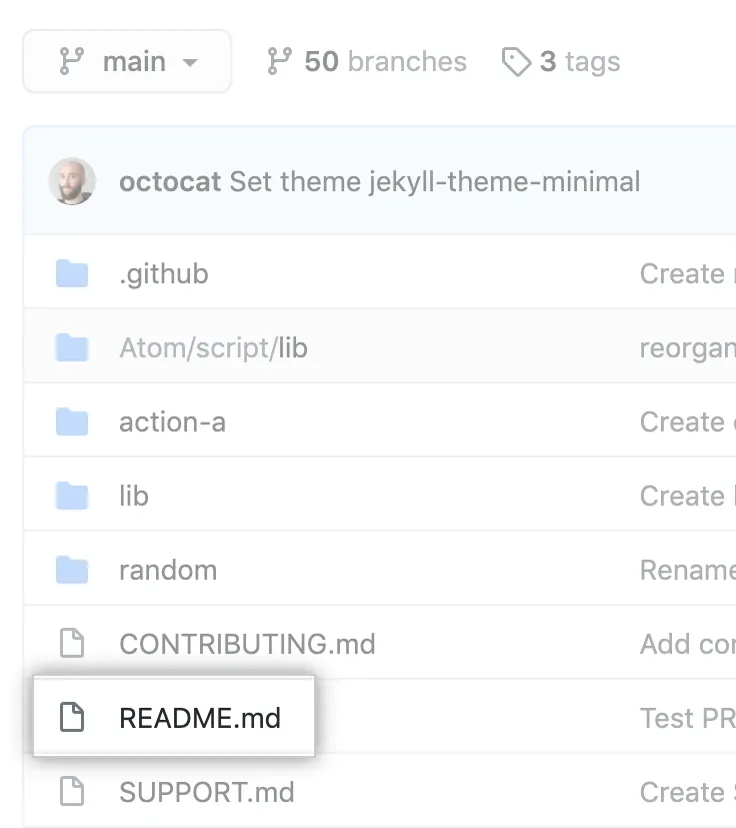
If you add a README on the website, this is the editor. Commit changes saves that version. Screenshot: GitHub Docs, CC BY 4.0 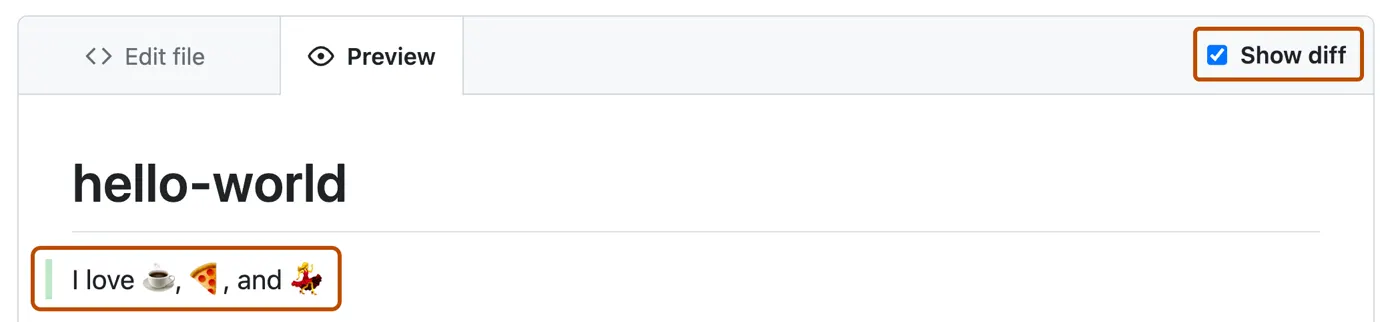
The commit message is one sentence about what changed. Screenshot: GitHub Docs, CC BY 4.0
After the first push
The everyday loop is three commands. Run them from the project folder whenever you want GitHub to have the latest version.
git add .
git commit -m "what changed"
git pushWhere Claude Code fits
Claude Code can run these commands for you. You still need to know what they mean, because you read the output and you write the commit sentence. Ask it to stop before a push until you've seen git status.
Watch and read
- Set up GitGitHub's setup, including the name and email.
- A new SSH keyThe official key steps, if the copy command needs a picture.
- Quickstart for repositoriesWhere the GitHub screenshots on this page come from.