Terminal basics
The terminal is a text window. You type a command, press return, and the computer answers. It looks scary. It isn't. About 1 hour.
Find your way around
You only need three commands to start: where you are, what's in this folder, and how to move. Everything else on this site sits on those three.
In design terms
A command is a short instruction, the way a search in Figma is a short instruction. You type it, press Return, and the answer shows up in the same window. The blinking cursor is waiting. It is not judging the sentence.
Where I see designers get stuck
The prompt looks like code, so people freeze. One wrong letter is the usual problem, and the message tells you what it didn't understand. A typo like this is enough:
A folder that isn't there
cd DeskopWords you'll hear
- pwd
- Where am I. It prints the folder path.
- ls
- What's in this folder.
- cd
- Go into a folder. cd .. goes up one level.
- mkdir
- Make a folder.
- open .
- Open this folder in Finder. On Windows, in Git Bash, use explorer .
- code .
- Open this folder in VS Code. The editor has to be installed first, and the code command has to be on your path.
- localhost
- A page that only runs on your computer. The address starts with localhost.
Shortcuts
Tab | Finishes a file or folder name, so you don't have to type it all. |
|---|---|
Up arrow | Repeats the last command. |
Ctrl + C | Stops whatever is running. This does not close the window. |
clear | Wipes the screen. It is a command, not a key. |
Steps
Open Terminal
On a Mac: press Cmd + Space, type Terminal, press Return. On Windows: install Git from git-scm.com, then open Git Bash. The lessons use Git Bash on Windows because the commands match.
See where you are
pwdYou should see a path, something like /Users/your-name. That is the folder the next command will use.
See what's here
lsNames of files and folders. If you expected a project and it isn't in the list, you are in the wrong folder.
Go into a folder
cd Desktop/my-first-projectIf that folder doesn't exist yet, make it, then go in.
Make the folder, then enter it
mkdir my-first-project cd my-first-projectGo back up
cd ..One level. Run pwd again if you want to see the path change.
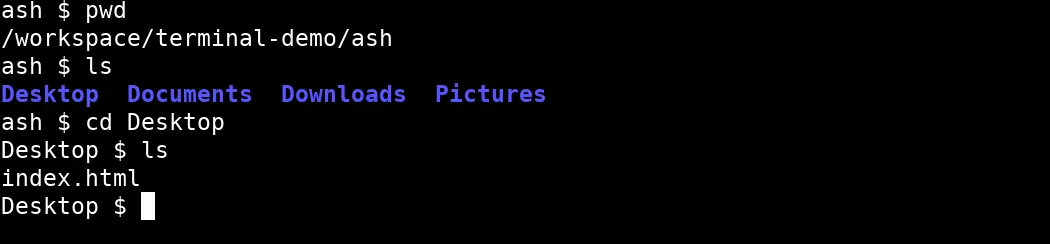
A real terminal session: where you are, what's in the folder, then moving into it.
Part 2. Open the folder and see the page
The three commands get you to the folder. This part opens that folder in an editor, then serves the page on your computer.
Make a folder to practice on
mkdir notesOpen it on your computer
Mac
open .Windows, in Git Bash
explorer .Open it in the editor
From the project folder:
code .If the command isn't found, open VS Code, press Cmd + Shift + P (Ctrl + Shift + P on Windows), and run Shell Command: Install 'code' command in PATH. Then try again.
The terminal also lives inside the editor. code . opens this window in the folder you are in. See the page on your computer
If the project has a dev script, this starts a local server and prints an address. Open that address. It often looks like http://localhost:5173.
npm run devCtrl + C stops it. Nothing is on the internet yet. That comes in Ship your first build.
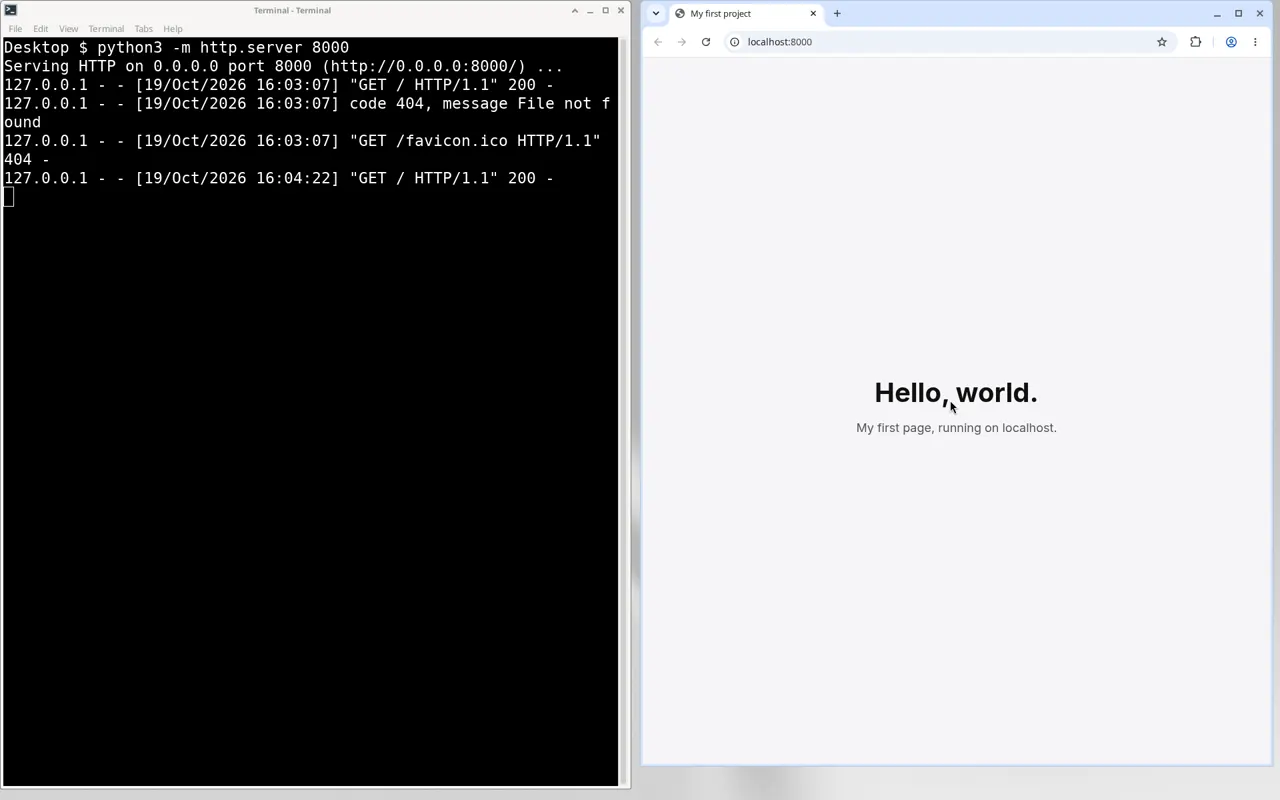
The same folder, served on your computer. The address starts with localhost, so only you can open it.
Where Claude Code fits
Claude Code and Cursor work in this same folder. Once you can land in the folder with cd, you can ask the tool to work there. You still want pwd, ls, and cd, because the tool prints them and you need to know if it is in the right place.
Watch and read
- Terminal User GuideApple's own guide to the Mac app.
- About version controlThe Git book, before any GitHub steps. Next page.